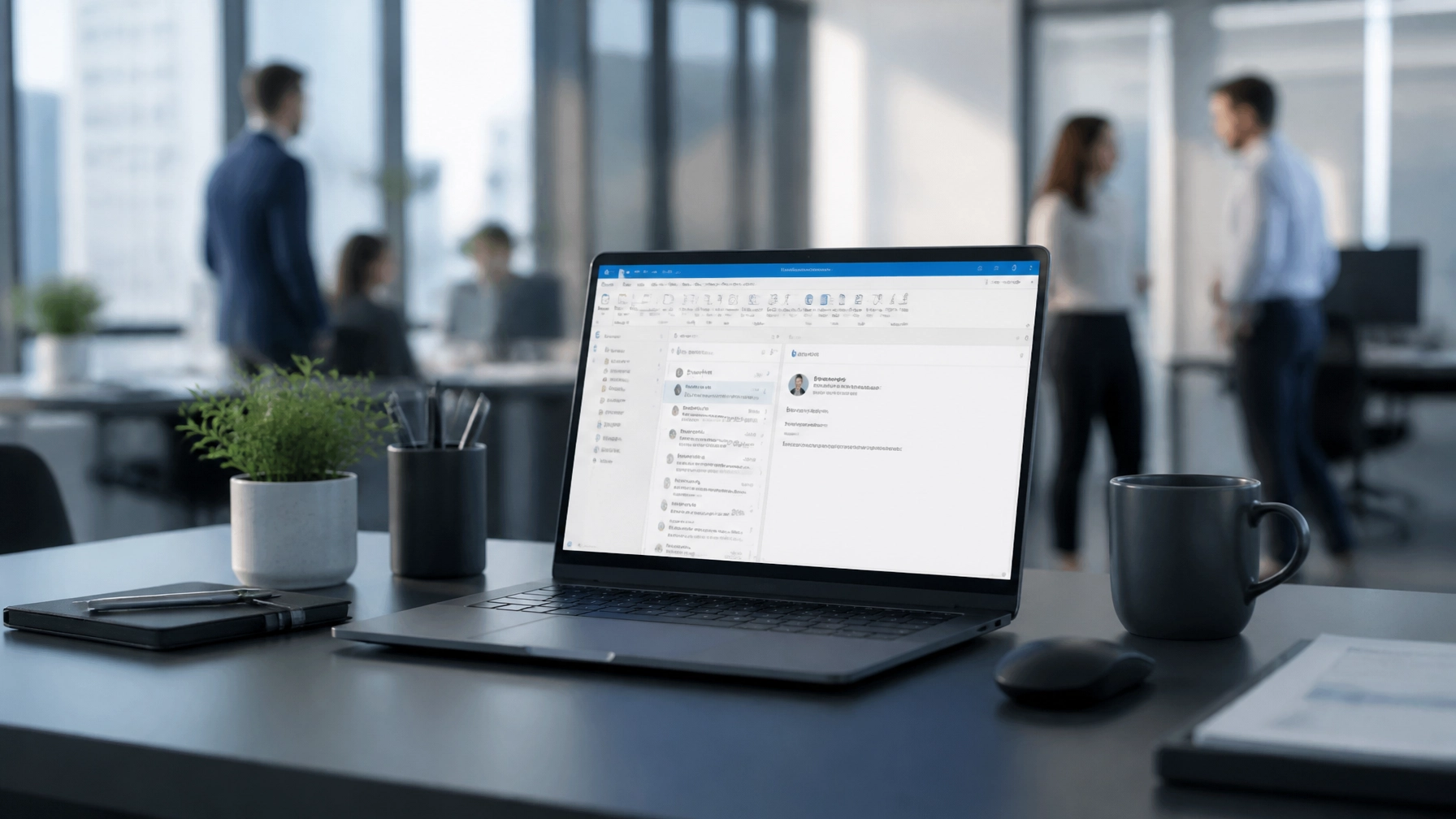
For the average SME owner or manager, the Microsoft Outlook inbox isn't just a communication tool; it’s a relentless to-do list that never stops growing. We’ve all been there: returning from a meeting to find 40 new emails, half of which are CC’d threads you don’t need to be part of.
At Anantek Solutions, we believe in "Invisible Infrastructure." Your tech should work silently in the background, enabling growth rather than creating friction. When your inbox is cluttered, your business slows down. Research suggests the average professional spends nearly a third of their workday on email. By streamlining your Outlook, you aren't just "cleaning up": you are performing IT Optimisation that directly impacts your bottom line.
This "Helpful Thursday" guide provides five actionable steps to reclaim your time and turn Outlook into a high-performance tool.
The SME Email Trap: Why It’s Different for You
In a large corporation, specialized departments handle specific tasks. In an SME, roles are often fluid. You might be the Managing Director one hour and the head of procurement the next. This leads to a diverse stream of emails: from high-level strategy to minute operational details: all landing in the same inbox. Without a system, critical information gets buried, leading to missed opportunities or delayed projects.
Efficient communication is the foundation of SME Growth. By organizing your digital workspace, you are setting the stage for a more resilient business.
Step 1: Execute a Mass Archive for a "Fresh Start"
The biggest hurdle to a clean inbox is the sheer volume of historical "stuff." If you have 2,000 emails sitting in your inbox, you will never feel organized. The psychological weight of that number is a distraction in itself.
The Action:
Don’t delete them; archive them. Create a folder named "Archive [Year]" and move everything older than two weeks into it. Outlook’s search functionality is incredibly powerful; if you need that invoice from six months ago, a quick search will find it in your archive folder just as easily as in your inbox.
If your Outlook is feeling sluggish while doing this, you might be facing the "Spin of Death." Large data files can sometimes cause the application to hang. Check out our guide on Outlook 101 to keep your software running smoothly during heavy cleanup.

Step 2: Implement the "Three-Folder" Workflow
SMEs often fall into the trap of creating dozens of folders for every client, project, or vendor. This actually increases the time you spend filing and navigating your sidebar. Instead, adopt a triage-based system.
The Action:
Create three main folders directly under your Inbox:
- @Action Required: For emails that require a task, a phone call, or a detailed response.
- @Awaiting Response: For emails where the ball is in someone else's court, but you need to track the outcome.
- @Read Later: For newsletters, industry updates, or non-urgent FYIs.
The "@" symbol ensures these folders stay at the top of your list alphabetically. Every email that enters your inbox should be moved to one of these three folders, archived, or deleted immediately. Your inbox should serve only as a temporary transit station, not a storage unit.
Step 3: Automate with Rules and "Sweep"
Why do the work yourself when Outlook can do it for you? Automation is the heart of modern Managed IT Support Services.
The Action:
- Rules: If you get regular system alerts, automated reports, or CC’d notifications from a specific project management tool, set a Rule to move them automatically to a specific folder or the bin. Right-click an email > Rules > Always move messages from…
- The Sweep Tool: Available in Outlook Web and the new Outlook desktop app, "Sweep" allows you to quickly delete incoming email from a specific sender or keep only the latest message. This is perfect for daily news summaries.
- Technical Tip: Search Folders: Go to the bottom of your folder list, right-click "Search Folders," and select "New Search Folder." You can create a live view of "Unread Mail" or "Mail with large attachments." This helps you identify clutter without manually hunting for it.
- Security Context: While automation is great, remember that your inbox is also a primary entry point for threats. Robust Email Spam Filtering is essential. A clean inbox is a more secure inbox because you are less likely to click on a malicious link hidden in a mountain of junk.
Step 4: Schedule Focused Processing (The "Batch" Method)
Constant notifications are productivity killers. Every time an email "pings," it takes an average of 23 minutes for your brain to return to deep focus on your original task. For a business owner, this "context switching" is the enemy of strategy.
The Action:
Treat email like a meeting. Schedule specific 20-minute blocks per day (e.g., 9:00 AM, 1:00 PM, and 4:30 PM) to process your inbox. Outside of these times, close Outlook or turn off notifications.
If you are tackling a massive backlog, try the "Work Offline" mode (found under the Send/Receive tab). This stops new emails from trickling in while you organize what’s already there, allowing you to reach "Inbox Zero" without the frustration of seeing new mail arrive while you're trying to clear the old.

Step 5: Stop Clutter at the Source
A clean inbox is easier to maintain than it is to achieve from scratch. You need to be aggressive about what you let in. This is where "Tech That Lasts" meets personal habit.
The Action:
- The Unsubscribe Habit: Don't just delete newsletters you no longer read. Use the "Unsubscribe" link that often appears at the top of the Outlook header. It takes 5 seconds now but saves you dozens of deletions over the year.
- Convert to Tasks: If an email is actually a large project, don't leave it in your inbox as a reminder. Drag the email to the "Tasks" icon in the Outlook sidebar. This creates a dedicated task with the email attached, allowing you to archive the original message and keep your inbox clear.
- Internal Communication: If your team is CC'ing you on everything "just so you know," it might be time to move those conversations to Microsoft Teams. Use email for formal external communication and Teams for internal collaboration to keep your Outlook lean.
The Strategic View: Reliability by Design
At Anantek Solutions, we know that business success is built on reliable foundations. For our clients in high-stakes environments: like the luxury retail fit-outs we’ve completed for Audemars Piguet (AP) and A. Lange & Söhne (ALS): reliability is everything. Whether it’s the structured cabling behind a luxury storefront or the way you manage your daily communication, the goal is the same: durability, performance, and professionalism.
We work with trusted electrical partners to ensure the physical infrastructure: cabling, Wi-Fi, and network installs: is as robust as the software systems running on it. An organized inbox is a small but vital part of a wider strategy that includes Cybersecurity Best Practices and proactive maintenance.

Is Your IT Holding You Back?
Cleaning your inbox is a great first step, but it’s only one part of the puzzle. If your business is struggling with slow networks, outdated hardware, or growing security concerns, it might be time for a professional audit. At Anantek Solutions, we specialize in helping SMEs optimize their tech stacks to ensure they are built for longevity. We focus on the "Invisible Infrastructure" so you can focus on your craft.
Ready to move from firefighting to growth?
Contact Anantek Solutions today for an IT Optimisation consultation. Let us build a tech environment that works for you, not against you.