
We've all been there. You're in the middle of crafting an important email, or worse, trying to find one, and Outlook decides it's nap time. The screen goes pale, that dreaded "(Not Responding)" appears in the title bar, and you're left staring at the spinning wheel of doom wondering if you've just lost everything.
Welcome to the first edition of Helpful Thursdays, where we tackle the IT headaches that eat into your productivity. Today's topic? Getting Outlook back on its feet when it decides to freeze mid-stride.
The good news: most Outlook freezing issues can be resolved without a computer science degree. Let's walk through the fixes, starting with the simplest and working our way up.
Why Does Outlook Not Responding Happen?
Before we dive into solutions, it helps to understand the usual suspects. Outlook freezing is typically caused by:
- Outdated software – Old versions contain bugs that newer updates have squashed
- Rogue add-ins – Third-party plugins that don't play nicely with your Outlook version
- Background processes – Outlook might be busy syncing, sending, or archiving without telling you
- Oversized mailboxes – Years of unarchived emails can slow things to a crawl
- Corrupted data files – Your .pst or .ost files may have developed issues over time
Now, let's fix it.

Start with the Simple Stuff
1. Restart Outlook (and Your Computer)
Yes, we know, "Have you tried turning it off and on again?" is the IT equivalent of "drink more water." But there's a reason it's the first step: it works.
Restarting clears memory, kills hidden processes that might be interfering, and gives Outlook a fresh start. Close Outlook completely (we'll cover stuck processes in a moment), then restart your computer for good measure.
2. Install the Latest Updates
Running an outdated version of Office or Windows is like driving with the handbrake on, things will work, just not well.
Microsoft regularly releases patches that fix bugs and compatibility issues causing Outlook to freeze. To update:
- Open Outlook and go to File > Office Account
- Click Update Options > Update Now
- Let it download and install (this may take a few minutes)
Don't forget to check for Windows updates as well, they often contain critical fixes for Microsoft 365 applications.
3. Check if Outlook Is Actually Busy
Sometimes Outlook isn't frozen, it's just working hard in the background. Look at the status bar at the bottom of your Outlook window. If you see messages like:
- "Connecting to mail server…"
- "Updating folders…"
- "Sending message 3 of 45…"
Then Outlook is doing something important. Give it time to complete the task. This is especially common after:
- Sending a batch of emails
- Syncing with your mobile device
- Running an automatic archive
- Large attachment uploads
If the status bar shows activity, grab a coffee and let Outlook finish what it's doing.
Kill Stuck Processes
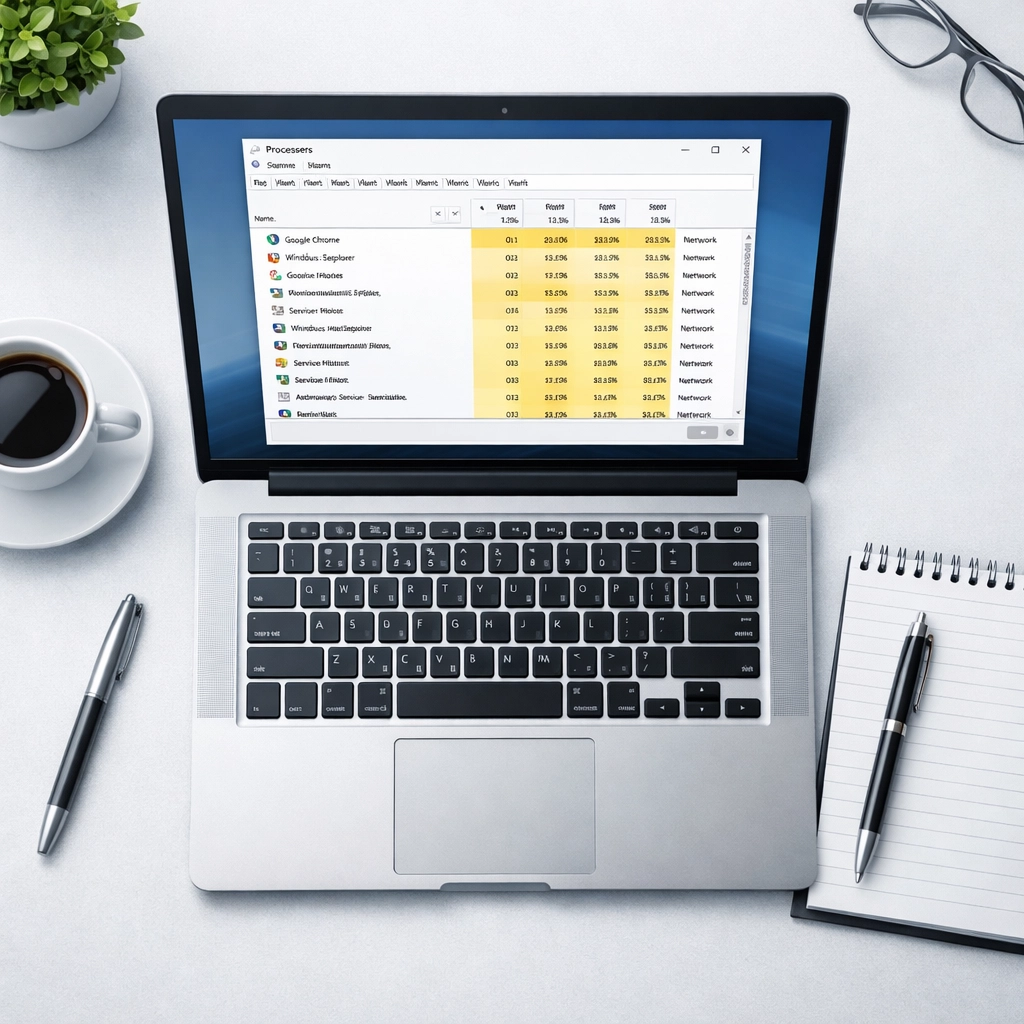
If Outlook won't close properly or keeps saying it's already running when you try to launch it, there may be a lingering process hogging resources.
Here's how to end it:
- Press Ctrl + Shift + Esc to open Task Manager
- Look for any OUTLOOK.EXE processes on the Processes tab
- Right-click each one and select End task
- Close Task Manager and try launching Outlook again
This clears out any zombie processes preventing Outlook from running properly.
Disable Add-Ins (The Usual Culprit)
If you've tried the above and Outlook is still playing up, there's a strong chance a third-party add-in is the troublemaker. Add-ins extend Outlook's functionality, think Zoom integrations, CRM tools, or email trackers, but they can also introduce instability, especially after an update.
Test with Safe Mode
Safe Mode launches Outlook with all add-ins disabled, letting you quickly identify if they're the problem:
- Hold down the Ctrl key while clicking the Outlook icon, or press Windows + R, type outlook.exe /safe, and hit Enter
- If Outlook runs smoothly in Safe Mode, an add-in is definitely your issue

Disable Add-Ins Permanently (Until You Find the Bad One)
To disable add-ins and identify the culprit:
- Open Outlook normally (not in Safe Mode)
- Go to File > Options > Add-ins
- At the bottom, next to Manage, select COM Add-ins and click Go
- Uncheck all add-ins and click OK
- Restart Outlook
If Outlook works fine now, re-enable add-ins one at a time, restarting Outlook after each. When the freezing returns, you've found your culprit. Remove or update that add-in.
Repair Your Outlook Installation
Still seeing the spin of death? It's time to repair Office itself. Microsoft includes built-in repair tools that can fix corrupted files without losing your data.
Quick Repair vs. Online Repair
There are two repair options:
- Quick Repair – Fast, offline, fixes most common issues
- Online Repair – Takes longer, requires internet, more thorough
Start with Quick Repair:
- Close Outlook and all Office apps
- Open Control Panel > Programs and Features
- Find Microsoft Office or Microsoft 365, right-click, and select Change
- Choose Quick Repair and click Repair
If that doesn't solve it, repeat the process but select Online Repair instead. This reinstalls Office files from Microsoft's servers and can take 15-30 minutes depending on your connection.
Advanced: Repair Your Data Files
If you suspect your .pst or .ost file is corrupted (symptoms include missing emails, sync errors, or persistent freezing), Microsoft provides the Inbox Repair Tool (scanpst.exe).
Finding and running this tool requires locating your Outlook data file and pointing the repair utility at it: it's a bit more technical. If you're not comfortable with file paths and system folders, this is where professional Microsoft 365 support can save you hours of frustration.

Create a New Outlook Profile
Sometimes the issue isn't Outlook itself: it's your user profile. Corrupted profiles can cause persistent freezing that no amount of repairs will fix.
Creating a new profile is straightforward but does require reconfiguring your email accounts:
- Close Outlook
- Open Control Panel > Mail (you may need to search for it)
- Click Show Profiles
- Click Add and create a new profile with a different name
- Set it as the default profile
- Launch Outlook and reconfigure your email account(s)
If Outlook runs perfectly with the new profile, your old one was the problem. You can delete it once you've confirmed everything works.
Prevention: Stop Outlook Freezing Before It Starts
Once you've got Outlook working again, a few preventive measures can keep it running smoothly:
Archive regularly – If your mailbox is measured in gigabytes and contains emails from 2015, it's time to archive. Large mailboxes slow everything down.
Limit add-ins – Only keep add-ins you actually use. Every extra plugin is another potential point of failure.
Keep software updated – Enable automatic updates for both Office and Windows.
Check your antivirus settings – Overzealous antivirus software can interfere with Outlook. Ensure your security software isn't aggressively scanning Outlook data files in real time.
Monitor mailbox size – Most Exchange and Microsoft 365 accounts have storage limits. Regularly review and delete unnecessary emails or attachments.
When to Call for IT Support
Not every Outlook problem is a quick fix. If you've tried the above steps and Outlook is still misbehaving: or worse, if multiple team members are experiencing the same issues: it might indicate a deeper infrastructure problem.
Server-side issues, network connectivity problems, or licensing complications require professional Microsoft 365 troubleshooting. At Anantek Solutions, we handle everything from individual Outlook gremlins to full Microsoft 365 environment optimisation, ensuring your team stays productive rather than staring at spinning wheels.
If you'd prefer to hand this off to someone who fixes Outlook problems before breakfast, get in touch. We'll get you sorted.
Next Thursday: We'll tackle OneDrive sync errors: because nothing says "Monday morning" quite like discovering your files didn't actually save to the cloud.