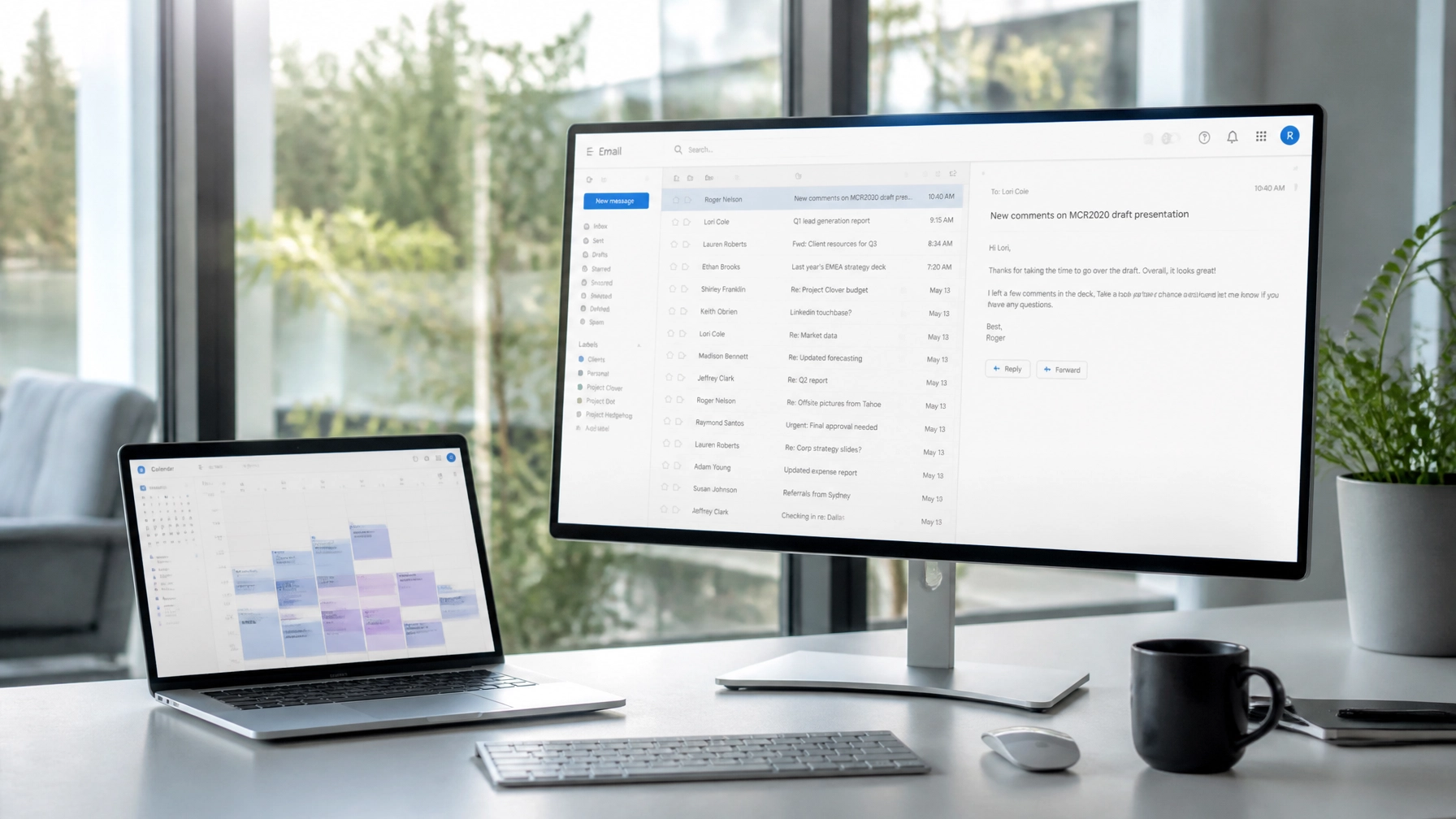
It happens to the best of us. You’re clearing out a cluttered inbox, moving quickly through a mountain of notifications, and, click, an important client contract or a critical project update vanishes into the digital void. For a small to medium enterprise (SME), a lost email isn't just a minor inconvenience; it can mean a missed deadline, a lost lead, or a broken chain of communication.
At Anantek Solutions, we believe in "Invisible Infrastructure", the idea that your technology should work so reliably in the background that you forget it’s even there. But when the human element leads to an accidental deletion, you need a clear, professional path to recovery.
This guide, part of our "Helpful Thursdays" series, is designed to help SME business owners and staff navigate Microsoft 365 recovery without the panic. Whether you are using the Outlook desktop app or the web version, here is your step-by-step rescue plan to recover deleted emails.
Understanding the "Three Layers" of Recovery
Microsoft 365 for SMEs is built with several safety nets. Think of it as a tiered system designed to prevent permanent data loss. Before we dive into the steps, it is helpful to understand where your email might be hiding:
- The Deleted Items Folder: The standard "trash can" everyone is familiar with.
- The Recoverable Items Folder: A hidden second bin where items go after they are emptied from the Deleted Items folder.
- The IT Admin Level: Where specialized tools can often retrieve data even after the standard retention windows have closed.
Step 1: Checking the Deleted Items Folder
The first place to look is always the Deleted Items folder. In most cases, unless you have specifically emptied this folder or your system is set to clear it on exit, your email is sitting right there, waiting to be moved back.
For Outlook Desktop Users:
- Open your Outlook application.
- Navigate to your email folder list and select Deleted Items.
- Scroll through or use the search bar at the top of the folder to find your missing message.
- Once found, right-click the email, select Move, and choose Inbox (or your preferred folder).
For Outlook on the Web Users:
- Log in to your account at outlook.office.com.
- In the left-hand navigation pane, click on the Deleted Items folder.
- Locate the email. You can drag and drop it back to your Inbox, or right-click and select Restore.

Step 2: The "Second Bin" – Recoverable Items
If you’ve already emptied your Deleted Items folder, or if you used the "Shift + Delete" shortcut to permanently delete a message, don't worry. Microsoft 365 has a "hidden" layer known as the Recoverable Items folder.
How to access it on the Desktop App:
- Click on the Deleted Items folder.
- Go to the Folder tab on the top ribbon.
- Click the button that says Recover Deleted Items from Server.
- A new window will appear listing everything that was recently cleared from your trash. Select the items you need and click Restore Selected Items, then hit OK.
How to access it on the Web:
- Go to your Deleted Items folder.
- At the top of the message list, look for a link that says "Recover items deleted from this folder".
- Select the emails you wish to bring back and click Restore.
Crucial Tip: Items in the "Recoverable Items" folder are typically held for 30 days by default in most Microsoft 365 for SMEs configurations. If you wait longer than a month, the recovery process becomes significantly more complex.
Step 3: When the Retention Period Has Passed
If you have searched both bins and the email is still nowhere to be found, you have likely moved past the standard user-facing recovery window. This is the point where the "Invisible Infrastructure" needs a bit of expert intervention.
This is why having a partner for IT Management is vital. In a business environment, an administrator can use the Exchange Admin Center (EAC) to perform a "Content Search" or use eDiscovery tools to find and export data that has been "purged" from a user’s view but still resides on the server.
If your business handles high-stakes data: much like our luxury watch partners, Audemars Piguet (AP) and A. Lange & Söhne (ALS), for whom we provide high-end IT Infrastructure and structured cabling: you cannot afford to lose paper trails. For these clients, we ensure that retention policies are robust and recovery is always a possibility.

How to Prevent Accidental Deletions in the Future
While knowing how to recover an email is essential, preventing the loss in the first place is a hallmark of Tech That Lasts. Proactive maintenance and smart habits can save your team hours of stress.
- Archive, Don’t Delete: Encourage staff to use the "Archive" button instead of "Delete." Archiving moves the email out of the main inbox but keeps it searchable and safe in an Archive folder, bypassing the retention limits of the trash bin.
- Disable "Empty Trash on Exit": Many users have an old habit of setting Outlook to empty the Deleted Items folder every time they close the app. In a modern SME environment, this is rarely necessary and increases the risk of permanent loss.
- Implement "In-Place Hold": For critical roles (like Finance or Legal), an IT admin can set up an "In-Place Hold" or "Litigation Hold." This ensures that even if a user deletes an email, a copy is preserved on the server for compliance and recovery.
- Regular Training: Most accidental deletions happen due to a lack of familiarity with the interface. A quick training session on Microsoft 365 basics can significantly reduce these instances.
When to Contact IT Support for Small Business
If you’ve followed the steps above and the email is still missing, it is time to call in the professionals. Attempting to use third-party "data recovery" software found on the web can often pose a security risk to your entire network.
At Anantek Solutions, we pride ourselves on Expert Customer Support. Our team responds to requests in an average of 1 minute, and we resolve 60% of issues on the first touch. Whether it's a missing email or a full-scale Remote Support requirement, we are here to ensure your business remains operational.

Summary Checklist for Email Recovery
| Step | Action | Best For |
|---|---|---|
| Check Deleted Items | Look in the standard trash folder. | Recent accidental deletions. |
| Recover from Server | Use the "Recoverable Items" link. | Items emptied from trash within 30 days. |
| Contact Admin | Perform an admin-level Content Search. | Items older than 30 days or "purged" data. |
| Audit Retention | Review your company's M365 settings. | Preventing future permanent loss. |
Partnering for Peace of Mind
Navigating Microsoft 365 for SMEs shouldn't feel like a solo journey. The difference between a minor blip and a business catastrophe often comes down to the infrastructure and support you have in place. From structured cabling and Wi-Fi installs that power high-end retail to the day-to-day management of your cloud environment, Anantek Solutions provides the reliability your business needs to grow.
If you are worried about your current backup strategies or need a hand with a difficult recovery, Contact Us today. Let’s make sure your business has the "Invisible Infrastructure" it deserves.