Passwords alone are no longer enough to protect your Microsoft 365 accounts. A stolen or reused password can give an attacker access to email, documents, customer information and financial data.
Multifactor authentication (MFA) adds a second verification step when someone signs in. Even if an attacker has the correct password, they still need access to an approved device or authentication method.
For most small and medium-sized businesses, the recommended starting point is Security defaults in Microsoft Entra ID. Security defaults are available at no extra cost through Microsoft Entra ID Free, which is included with Microsoft 365 organisations.
Microsoft states that multifactor authentication and blocking legacy authentication can stop more than 99.9% of common identity-related attacks. This makes MFA one of the most valuable improvements you can make to your Microsoft 365 security posture.
What You Need Before Enabling MFA
Before you begin, make sure you have:
- Access to the Microsoft Entra admin center at entra.microsoft.com.
- A Global Administrator account, or another account with the required security permissions.
- A current list of Microsoft 365 users who will need to register for MFA.
- A plan for telling users what will happen when they next sign in.
- Confirmation that important older applications or devices do not rely on legacy authentication.
Microsoft recommends using the lowest level of administrative permission required. However, many SME environments use a Global Administrator account for this change. Do not use a standard Microsoft 365 user account to configure tenant-wide MFA.
The Recommended Option: Security Defaults
Security defaults are Microsoft’s preconfigured baseline for organisations that want strong identity protection without designing complex policies.
When enabled, Security defaults:
- Require users to register for MFA.
- Require administrators to use MFA.
- Prompt users for MFA when Microsoft detects that additional verification is necessary.
- Block older authentication protocols that cannot support MFA.
- Protect access to services such as the Microsoft Entra admin center and Azure portal.
Security defaults are simple: they are either enabled or disabled. There are no detailed conditions for location, device type or application. That simplicity makes them a strong choice for many SMEs using Microsoft 365 for business.
Step-by-Step: Enable Security Defaults in Microsoft 365
Step 1: Sign in to the Microsoft Entra admin center
Open entra.microsoft.com and sign in using your Global Administrator account.
You may be asked to complete MFA yourself before accessing the admin center. This is expected. Administrators have extensive access to your environment, so they should be protected first.
Step 2: Open the Microsoft Entra overview
From the left-hand navigation:
- Select Entra ID.
- Select Overview.
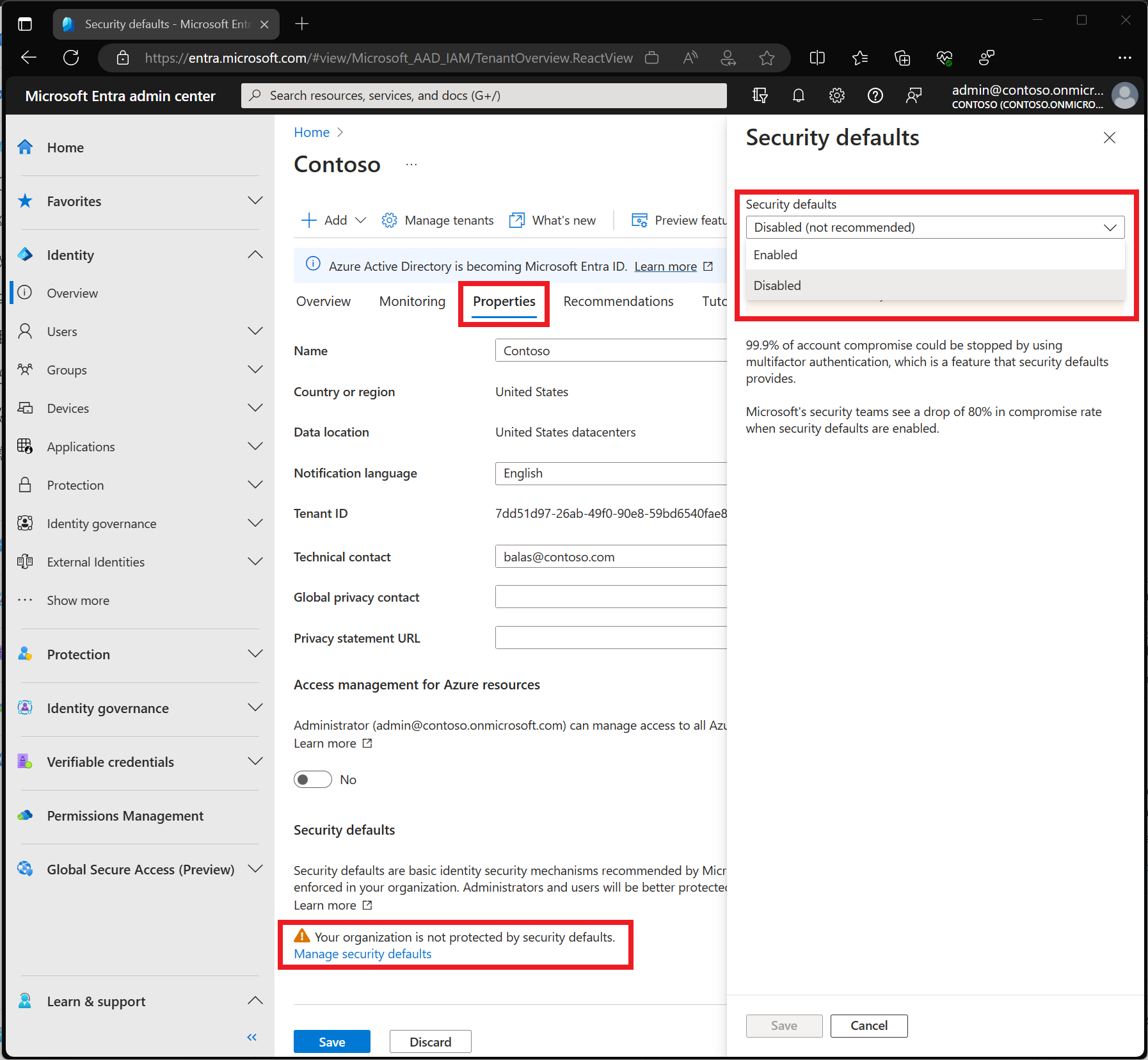
- Open the Properties tab.
Scroll towards the bottom of the page until you find the Security defaults section.
Step 3: Check the current Security defaults status
You may see one of the following messages:
- Your organisation is protected by security defaults – MFA protection is already enabled.
- Your organisation is not protected by security defaults – the setting is currently disabled.
- Your organisation is currently using Conditional Access policies – Security defaults cannot be enabled while Conditional Access policies exist.
Newer Microsoft 365 tenants may already have Security defaults enabled. Always check the status before making changes.
Step 4: Select “Manage security defaults”
If the option is available, select Manage security defaults.
In the panel that appears, find the Security defaults dropdown list.
Step 5: Set Security defaults to Enabled
Select Enabled, then select Save.
Microsoft 365 will now apply the baseline protections across your tenant. Users will be asked to register for MFA as they sign in.
Do not turn off Security defaults simply because users are being prompted. The prompts are the expected result of enabling protection.
What Users Will See When They Sign In
After Security defaults are enabled, users may be asked to register for MFA the next time they sign in to Microsoft 365.
The usual process is:
- The user signs in with their Microsoft 365 email address and password.
- Microsoft asks them to set up the Microsoft Authenticator app.
- The user installs Microsoft Authenticator on their smartphone.
- The setup screen displays a QR code.
- The user opens the Authenticator app and adds their work or school account.
- They scan the QR code shown on screen.
- Microsoft sends a test approval request.
- The user approves the request to complete registration.
During future sign-ins, the user may see a number on the Microsoft 365 sign-in screen. They must open Microsoft Authenticator and enter or select the matching number.
Number matching is designed to reduce accidental approvals and help protect users from MFA fatigue attacks. Users should never approve an authentication request they did not initiate.

Tell users what to expect
A short message before rollout will prevent confusion. Explain that:
- MFA is being enabled to protect company accounts.
- They will need their smartphone during setup.
- Microsoft Authenticator is the recommended app.
- They may see an approval request or number-matching prompt when signing in.
- They must reject unexpected requests and report them.
- They should contact the person responsible for IT if they replace or lose their phone.
Microsoft also provides user guidance for registering security information.
Important Checks After Enabling MFA
Confirm that administrators can sign in
Ask each administrator to sign in and complete registration. Administrator accounts are particularly valuable targets because they can change settings, create users and access business data.
Microsoft recommends separate administrator and everyday user accounts. This limits the amount of time a highly privileged account is used for routine work.
Check older email applications and devices
Security defaults block legacy authentication protocols. These older protocols cannot properly enforce MFA and are frequently targeted by attackers.
Check devices such as:
- Older multifunction printers that send email.
- Outdated versions of Microsoft Outlook.
- Legacy mail applications using POP or IMAP.
- Older scanners or line-of-business systems connected to Microsoft 365.
If one of these stops sending email, it may need to be modernised or reconfigured. Do not disable Security defaults as a quick workaround without understanding the security impact.
Keep backup access under control
A phone replacement, lost device or employee departure can create access problems. Make sure your organisation has a documented process for account recovery and changing authentication methods.
This should form part of a wider managed IT services plan that covers user support, access management, proactive maintenance and security monitoring.
Conditional Access for Microsoft 365 Business Premium
Security defaults are an excellent baseline, but they provide limited customisation.
If your organisation uses Microsoft 365 Business Premium, you can use Microsoft Entra ID P1 features, including Conditional Access. Conditional Access lets you create rules based on signals such as:
- Which user or group is signing in.
- Which application they are accessing.
- Whether the device is managed or compliant.
- The user’s location.
- Sign-in risk or unusual behaviour.
For example, you could require MFA for all users, require stronger authentication for administrators, block access from certain locations or require company-managed devices for sensitive applications.
Conditional Access policies are more flexible, but they also require careful planning. If you move from Security defaults to Conditional Access:
- Document the existing Security defaults protection.
- Create baseline policies that require MFA for users and administrators.
- Create a policy to block legacy authentication.
- Review emergency access accounts and exclusions.
- Test the policies before applying additional restrictions.
- Disable Security defaults only when the replacement policies are active.
Security defaults and Conditional Access cannot be enabled at the same time. If Conditional Access policies already exist: even if they are disabled or in report-only mode: you may not be able to enable Security defaults.
Read Microsoft’s Conditional Access overview before making this change.
Avoid Legacy Per-User MFA
Microsoft 365 also includes an older option called per-user MFA. This allows an administrator to enable MFA for individual users manually.
It is not the recommended approach for most businesses.
Per-user MFA can create inconsistent protection because some users may be enabled while others are missed. It also makes it harder to manage policies as your business grows.
Use:
- Security defaults for a simple, free tenant-wide baseline.
- Conditional Access for Microsoft 365 Business Premium and organisations that need granular control.
Only use legacy per-user MFA for specific scenarios where Security defaults or Conditional Access are not suitable.

Frequently Asked Questions
Does MFA cost extra in Microsoft 365?
Security defaults use Microsoft Entra ID Free, which is included with all Microsoft 365 organisations. You do not need to purchase an additional licence to enable MFA through Security defaults.
Conditional Access requires Microsoft Entra ID P1 or higher. Microsoft 365 Business Premium includes the required Conditional Access capabilities.
Will users need MFA every time they sign in?
Not necessarily. Security defaults asks users for additional verification when Microsoft determines it is necessary. This can depend on the device, location, application, role and activity.
Administrators should expect stronger MFA requirements than standard users.
Can MFA stop every cyberattack?
No security control stops every threat. MFA primarily protects user identities and sign-ins. It should be combined with secure devices, patching, email protection, staff awareness training, backups and monitoring.
However, MFA blocks the most common password-based account takeover attempts and is an essential part of modern business security.
What happens if a user loses their phone?
An administrator can help the user register a new authentication method or update their security information. Your recovery process should verify the user’s identity before making changes.
If the account belongs to an administrator, recovery can be more complicated. Maintain secure emergency access arrangements and avoid relying on one administrator account.
Should we turn off Security defaults if users complain?
No. Do not turn off Security defaults unless you are replacing it with properly configured Conditional Access policies.
If users are struggling with registration, provide clear instructions or ask your IT support provider to assist them. Removing MFA leaves your Microsoft 365 environment exposed.
Make Microsoft 365 Safer Without Adding Complexity
Enabling MFA through Security defaults is one of the quickest improvements an SME can make to its security. It protects users behind the scenes, blocks older authentication methods and helps keep unauthorised people away from business data.
For wider protection, Anantek Solutions provides IT support for small businesses, including Microsoft 365 support, cybersecurity, proactive maintenance and user assistance. Our team can review your current configuration, enable MFA safely and help you move to Conditional Access when your business needs more control.
Contact Anantek Solutions for managed IT support and build a more secure, reliable Microsoft 365 environment.