
Helpful Thursdays: Give Users a Secure Way to Reset Their Own Passwords
Forgotten passwords and locked accounts create unnecessary disruption for SMEs. A user cannot access email, Teams, files or business applications, so they contact the helpdesk and wait for assistance.
Microsoft Entra Self-Service Password Reset (SSPR) removes much of that delay. Once configured, users can verify their identity, reset their password and, where supported, unlock their account without raising a helpdesk ticket.
This guide explains how to enable and configure SSPR in Microsoft 365 for a small or medium-sized business. It covers the important decisions, including licensing, authentication methods, pilot groups, user registration and rollout communications.
Important: Microsoft Entra settings change over time. The exact labels in your admin centre may vary slightly depending on your tenant, licensing and Microsoft’s current interface.
What You Need Before You Start
SSPR is a security feature, not simply a password convenience. Before changing settings, confirm the following:
- You have a Microsoft Entra ID P1 or P2 licence, or a Microsoft 365 plan that includes the required identity features, such as Microsoft 365 Business Premium.
- You can sign in to the Microsoft Entra admin centre with at least the Authentication Policy Administrator role.
- You have a non-administrator test account.
- You have a Microsoft Entra security group available for a pilot.
- You know whether your organisation is cloud-only or synchronises identities with on-premises Active Directory.
Microsoft Entra Free generally supports administrator password reset scenarios, but full user SSPR requires the appropriate paid licensing. Check your tenant’s licence allocation before enabling the feature for all employees.
If you operate a hybrid environment, you may also need password writeback. This allows a password reset completed in Microsoft Entra ID to update the user’s password in on-premises Active Directory.
Step 1: Create a Small Pilot Group
Do not enable SSPR for every user immediately. Create a security group containing a small, cooperative group of employees from different roles.
A suitable pilot might include:
- One or two IT users
- An operations or finance user
- A manager
- Someone who regularly works remotely
- A user with a standard Microsoft 365 licence
Avoid using only technical staff. A successful rollout must work for ordinary users who may be less familiar with authentication prompts.
Record the pilot users and their current authentication methods. This gives you a clear baseline when testing the new configuration.
Step 2: Enable SSPR in the Microsoft Entra Admin Centre
- Sign in to the Microsoft Entra admin centre.
- Select Entra ID from the left-hand menu.
- Select Password reset.
- Open Properties.
- Under Self-service password reset enabled, choose one of the following:
- None – SSPR is disabled.
- Selected – SSPR is enabled for a specific group.
- All – SSPR is enabled for all eligible users.
- For an initial rollout, select Selected.
- Choose your pilot group.
- Select Save.

Choosing Selected allows you to test the complete user experience without affecting the entire business. Once the pilot is working and users have been briefed, you can return to this page and select All, or expand the rollout through a controlled group structure.
Microsoft currently supports selecting a group for SSPR in the admin centre, with broader deployment options available for larger or more complex environments.
Step 3: Choose the Authentication Methods
SSPR must confirm that the person requesting a reset is the legitimate account holder. Users prove their identity using registered authentication methods.
In the Microsoft Entra admin centre:
- Open Entra ID > Password reset.
- Select Authentication methods.
- Set Number of methods required to reset.
For most SMEs, requiring two methods provides a stronger balance between security and usability. For example, a user might confirm a Microsoft Authenticator notification and enter a code sent to an approved phone.
Available options may include:
- Microsoft Authenticator notification
- Microsoft Authenticator verification code
- Mobile phone SMS
- Voice call
- Email verification
- OATH tokens, where supported by your environment
Microsoft has moved authentication method management towards the central Authentication methods policy. Since 30 September 2025, legacy MFA and SSPR policies can no longer be used to manage authentication methods. Review Entra ID > Authentication methods > Policies and confirm that the methods you want to use are enabled for the same pilot users.
A note about phone-based verification
Phone verification is useful, but it should not be your only recovery option. Users may lose their phone, change their number, have poor mobile coverage or be unable to receive SMS while travelling.
For stronger resilience:
- Encourage Microsoft Authenticator registration.
- Require users to register more than one method.
- Keep telephone numbers up to date.
- Avoid relying exclusively on SMS for privileged accounts.
- Provide a secure support route for users who lose access to all registered methods.
Authentication methods should give users flexibility without creating a weak point in your identity controls.
Step 4: Require Users to Register Their Security Information
Users cannot use SSPR until they have registered the required authentication methods.
- From Entra ID > Password reset, open Registration.
- Set Require users to register when signing in to Yes.
- Set Number of days before users are asked to reconfirm their authentication information.
Microsoft’s example uses 180 days. Many organisations choose a period between 90 and 180 days, depending on their security requirements and user support capacity.
Select Save.
When a pilot user next signs in, Microsoft 365 will prompt them to register their security information. Users can also register manually through:
- https://aka.ms/ssprsetup
- https://myprofile.microsoft.com/, using the Security Info option
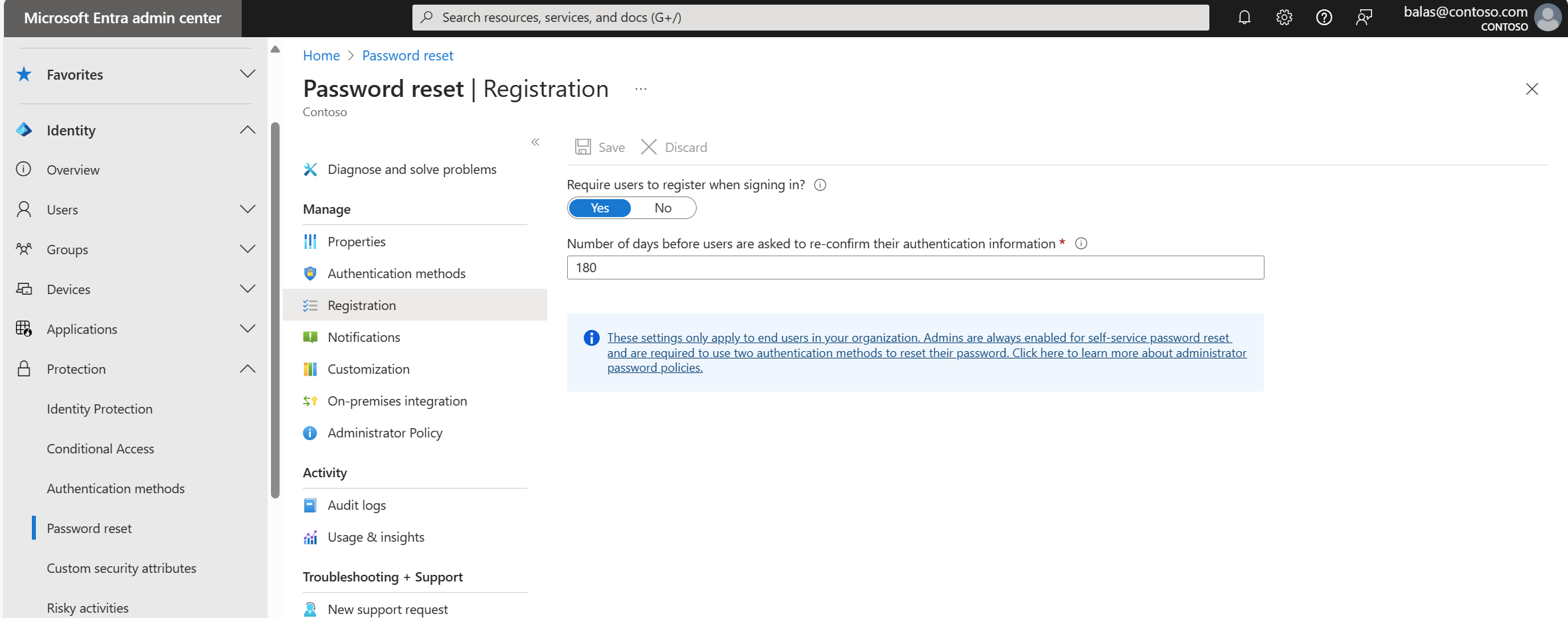
Re-confirmation matters because phone numbers and devices change. A recovery method that was accurate two years ago may no longer be available when a user needs it.
Step 5: Configure Notifications and Helpdesk Information
SSPR should reduce helpdesk tickets, not leave users unsure about what to do next.
Under Notifications:
- Set Notify users on password resets to Yes.
- Set Notify all admins when other admins reset their password to Yes.
These notifications give users an early warning if a password reset was not authorised by them.
Next, open Customization and enable Customize helpdesk link. Add your internal support email address, service desk portal or IT support page.
This is particularly important for:
- Users who have not registered their authentication methods
- Users who cannot access any registered method
- Users working with on-premises accounts
- Users who receive an unexpected verification prompt
Step 6: Configure Password Writeback for Hybrid Environments
If your organisation uses on-premises Active Directory, enabling SSPR in the cloud may not be enough.
Configure password writeback through Microsoft Entra Connect or Microsoft Entra Cloud Sync so that password changes are written back to your on-premises directory. You can also enable the option allowing users to unlock their account without changing their password.
Follow Microsoft’s password writeback guidance for the correct configuration.
This step requires additional planning. Test:
- Password reset for a synchronised user
- Password reset while connected to the corporate network
- Password reset while working remotely
- Account unlock without password change
- The time required for the change to apply across systems
Do not assume a cloud reset automatically works with every hybrid identity configuration.
Step 7: Test SSPR with a Pilot User
Use an incognito or InPrivate browser window to avoid cached credentials.
- Visit https://aka.ms/sspr.
- Enter the pilot user’s Microsoft 365 username.
- Complete the CAPTCHA.
- Verify the identity using the configured methods.
- Set a new password.
- Sign in to Microsoft 365, Outlook and Teams using the new password.
- If applicable, confirm that the new password works with on-premises resources.
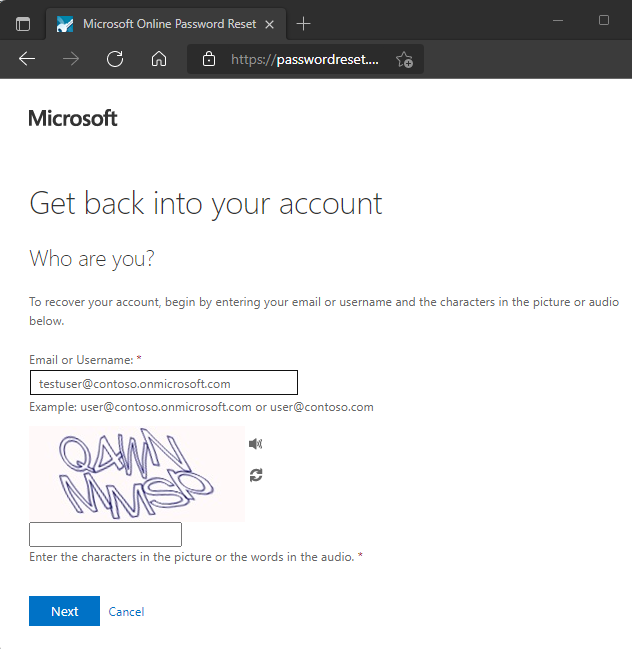
Test with more than one pilot user and document the results. Check the audit logs and password management reports in Microsoft Entra ID for registration and reset activity.
Do not use a Global Administrator account as your only test account. Administrator accounts follow stricter reset rules and may require two authentication methods. Test a standard user first, then confirm that your privileged account recovery process is documented separately.
Step 8: Notify Users and Roll Out Gradually
Before expanding SSPR, send users a short explanation covering:
- What SSPR does
- Why they are being asked to register
- Which methods they should prepare
- How to reset a password
- When to contact the helpdesk
- What to do if their phone is lost
You can give staff this simple internal instruction:
To reset your Microsoft 365 password:
Go to https://aka.ms/sspr, enter your work email address, select Next, verify your identity using your registered methods and create a new password. If you cannot access any method, contact IT support.
Roll out in stages rather than switching on All users without warning. Monitor support requests, registration completion and failed reset attempts. Once the process is stable, expand the enabled group or select All.
Common SSPR Pitfalls
Users never registered
A user cannot reset their password if they have not registered the minimum required authentication methods. Make registration mandatory and monitor completion.
Authentication methods are inconsistent
If your SSPR policy requires two methods but users have only registered one, their reset will fail. Make sure registration requirements match the reset policy.
Relying only on a work email address
A locked-out user may not be able to access their work mailbox. Use Microsoft Authenticator and another suitable recovery method rather than depending on the same account being recovered.
Administrators are treated like ordinary users
Privileged accounts have stricter requirements. Maintain separate recovery procedures for administrators and emergency access accounts.
Hybrid writeback has not been tested
Cloud-only testing does not prove that password changes work with on-premises Active Directory. Test the complete path before rolling out to hybrid users.
SSPR FAQ for SMEs
Does SSPR replace multi-factor authentication?
No. SSPR and MFA are related but separate controls. Combined registration can allow users to register methods for both, but SSPR does not replace a properly designed MFA policy.
Can users reset passwords from anywhere?
Generally, users can access the SSPR portal from any location with internet access, subject to your organisation’s access policies and network controls.
What happens if a user loses their phone?
They should use a second registered method. If none is available, the helpdesk must verify their identity and update their security information securely.
Should an SME enable SSPR for everyone immediately?
No. Start with a pilot group, test the experience, communicate clearly and review failed registrations before expanding.
How often should authentication details be reconfirmed?
A period between 90 and 180 days is a sensible starting point. Choose a period that fits your risk profile and support capacity.
Build Reliable Microsoft 365 Security That Lasts
SSPR is a practical improvement for SMEs. It reduces avoidable password-related support requests, helps employees return to work faster and gives your IT team more time to focus on strategic improvements.
However, the value depends on careful configuration. Licensing, authentication methods, user registration, hybrid identity and administrator recovery all need to work together.
If you need help reviewing Microsoft 365 identity controls, contact Anantek Solutions for a Microsoft 365 and managed IT support review. We can assess your current configuration, identify gaps and build a more reliable approach to security, support and ongoing maintenance: keeping your infrastructure invisible, dependable and ready when your business needs it.
For wider guidance, read our ultimate guide to managed IT support services and our advice on cybersecurity best practices.