
When a new employee joins, they need the right Microsoft 365 account, licence and access to get started. Setting these up before their first day helps them work productively, and reduces the risk of missed steps or unnecessary permissions.
This guide walks you through adding one employee in the Microsoft 365 admin center. You’ll need an administrator account with permission to manage users and licences. If you’re unsure whether you have the right access, ask your IT administrator or support provider.
Before you begin
Take a few minutes to confirm the details you’ll need:
- The employee’s full name and preferred sign-in name.
- The company email domain they should use.
- Their job role and which Microsoft 365 apps they need.
- Whether your organisation has an available licence for them.
- Any security or onboarding requirements, such as multi-factor authentication (MFA).
A licence determines which Microsoft 365 services the employee can use. Choose one that fits their role rather than automatically assigning the same package to everyone. If there isn’t a suitable licence available, check your subscription and costs before purchasing one.
Step 1: Open the Microsoft 365 admin center
Go to the Microsoft 365 admin center and sign in with an administrator account.
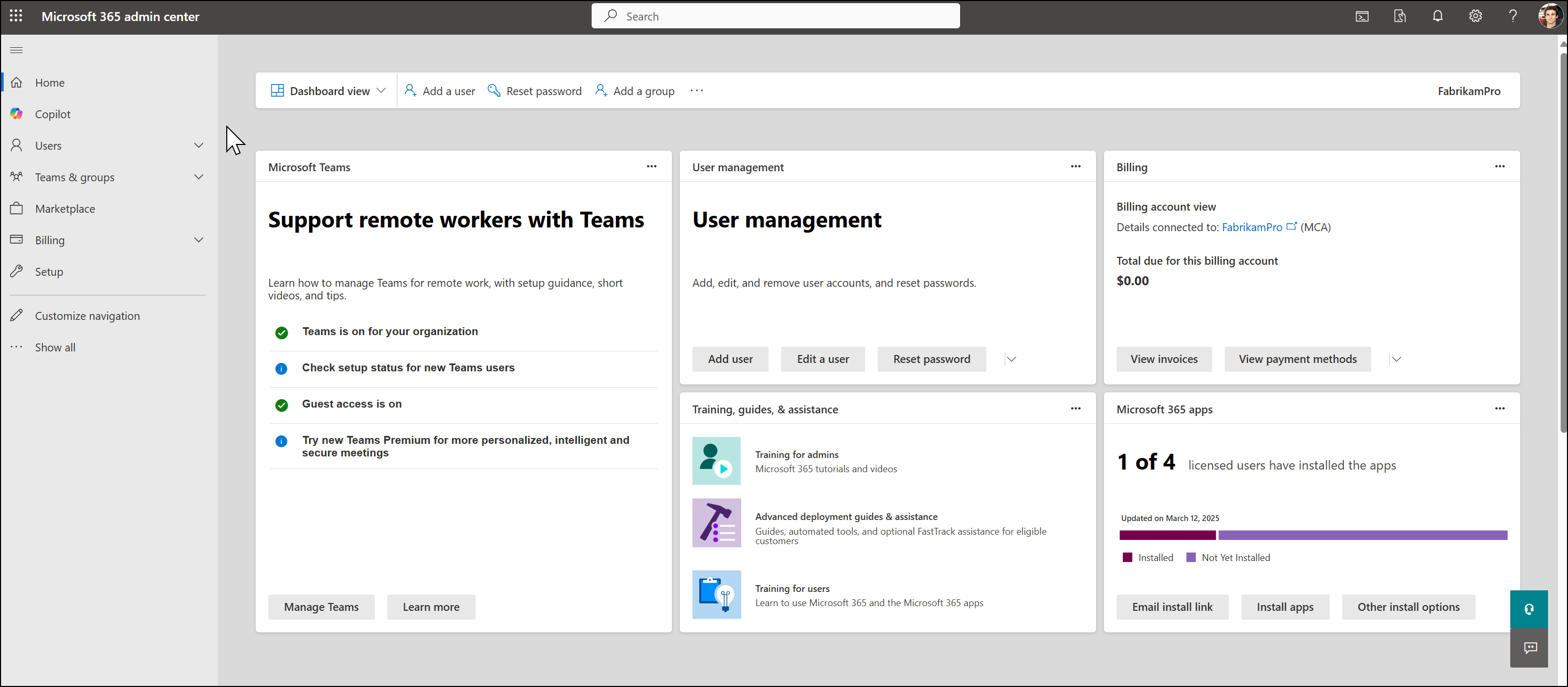
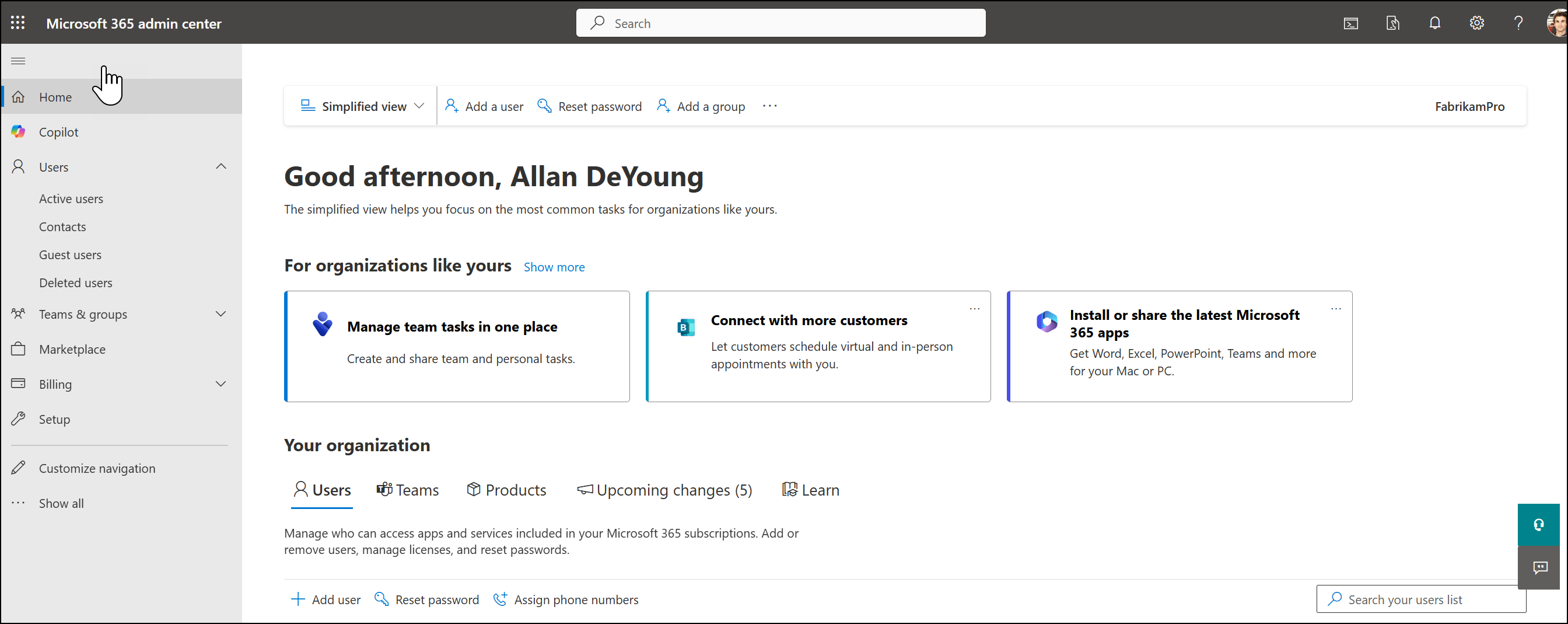
Depending on the view you see, the route to add a user may differ slightly:
- In Dashboard view, select Users > Active users, then choose Add a user.
- In Simplified view, select Add user. You may see this at the top of the page or under Users in the Your organization section.
Microsoft may update the layout, so button positions can change. The user-add process is broadly the same in either view.
Step 2: Enter the employee’s account details
Enter the employee’s first name, family name, display name and username. The username becomes part of their work sign-in. For example, an account might be alex.morgan@yourcompany.com.
Select the correct company domain from the available options. Before continuing, check the spelling of both the username and domain: a small mistake can cause sign-in confusion or create an address that doesn’t match your naming convention.
Microsoft may offer to create a password automatically. If you set a temporary password yourself, make it strong and share it securely, not in an unprotected email or message. Keep the option requiring the employee to change their password at first sign-in enabled unless your organisation’s process specifies otherwise.
Step 3: Assign the right licence
Choose the employee’s location and assign an available Microsoft 365 licence. The options depend on your organisation’s subscription.
If the setup offers app-level choices, review them before continuing. For instance, an employee may need email and Teams, while other apps or services might not be relevant to their role. Assigning only what they need helps you manage access and licensing costs.
If no suitable licence is available, you may be able to create the user without assigning one and return to licensing later. However, the employee won’t be able to use licensed services until the appropriate licence is assigned.
Step 4: Review roles and profile information
Most employees should have a standard user account, not an administrator account. Only assign an administrator role if the person genuinely needs to manage your Microsoft 365 environment. Give them the least privileged role that lets them do their job; administrator access carries greater risk if an account is compromised or misused.
You can also add profile details such as job title, department or contact information. These fields help keep your organisation’s directory useful and consistent.
Step 5: Check everything and finish adding the user
Review the account details, domain, licence and any roles you’ve selected. Correct any errors before choosing Finish adding.
When setup is complete, follow the prompts to share the sign-in information securely. You can also send the new employee a welcome or getting-started message. Make sure they know how to sign in and change their temporary password.
Microsoft’s employee quick setup guide can help them get started with Microsoft 365.
Step 6: Complete the wider onboarding
Creating an account is only one part of onboarding. Before the employee’s first day, check that they can access the resources needed for their role and that your security requirements are in place.
Use a consistent checklist, for example:
- Confirm the employee can sign in and complete any required security setup, including MFA.
- Check that the assigned licence and apps match their role.
- Confirm they have the appropriate access to relevant Teams, files and business systems.
- Arrange a company device, if required, and make sure it follows your organisation’s security and maintenance policies.
- Provide a contact for IT questions and explain how to request help.
Access needs vary by role, so avoid granting broad permissions “just in case”. If you’re not sure how access should be set up, confirm it with the employee’s manager or IT support provider.
Adding several employees at once
If you’re onboarding a group, the Microsoft 365 admin center also supports adding multiple users. In Dashboard view, go to Users > Active users and select Add multiple users. Depending on your view, the starting point may differ.
You can enter user details on the page or upload a CSV using Microsoft’s template. If you use a CSV, keep its column headings and order unchanged, then carefully check names and sign-in details before submitting. You’ll also need to select the location and relevant licences and apps.
For step-by-step instructions, see Microsoft’s guide to adding users and assigning licences.
Common mistakes to avoid
Choosing the wrong sign-in name or domain: Check the full work sign-in address before finishing.
Forgetting the licence: An account can exist without a licence, but the employee may not be able to use the Microsoft 365 services they need.
Assigning too much access: Give employees standard accounts unless their role requires additional permissions.
Sharing credentials insecurely: Treat temporary sign-in details as sensitive. Use a secure method and ask the employee to change the temporary password at first sign-in.
Stopping at account creation: Confirm that the employee can sign in and has the appropriate access, security setup and onboarding information.
A smoother start for your new employee
Adding a Microsoft 365 user is straightforward when you prepare the details, choose the right licence and check access before the employee starts. A repeatable onboarding process also makes it easier to manage accounts consistently as your business grows.

If you need help managing Microsoft 365 for SMEs, Anantek Solutions provides practical IT support for small business. Our IT support services respond in an average of one minute, and 60% of issues are resolved on the first touch. Contact Anantek Solutions to discuss support for your team.